By MISSIRIA 6 min read
In this article
- Confirm the drop is real before you look for a cause
- Use the Performance report to find where the traffic went
- Rule out manual actions and security issues
- Check the Page indexing report and your sitemaps
- Inspect the pages that lost the most
- List what changed on your side and outside it
- Write it down before you change anything
- Where MISSIRIA fits
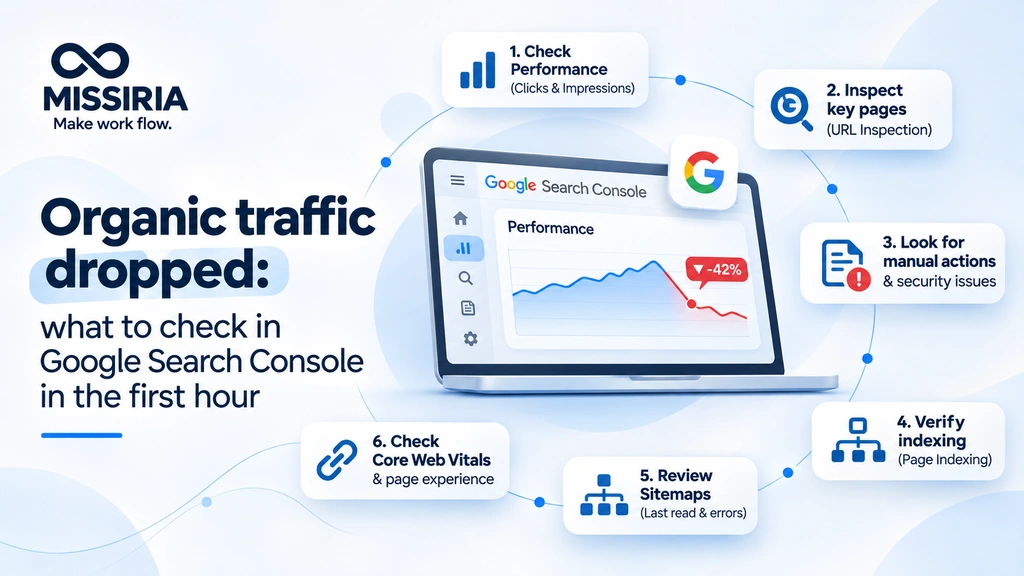
When organic traffic drops, spend the first hour confirming the drop is real, finding where it happened and ruling out the serious causes, before you change anything. Google Search Console can answer most of those questions if you check it in a set order: Performance, Manual actions and Security issues, Page indexing, then URL Inspection on the pages that lost the most.
This order matters because a natural reaction to a drop is to start editing pages, and every change you make before you understand the cause makes the cause harder to see.
Confirm the drop is real before you look for a cause
Start by checking that Search Console shows the same drop as your analytics tool. If clicks in the Search Console Performance report are steady but sessions in your analytics fell, the problem is more likely tracking than search: a removed tag, a consent banner change or a new page template that no longer loads the analytics script.
A few checks help here:
- Compare like with like. Compare the same days of the week, and the same period last year if your business is seasonal. A Monday compared with a Saturday can look like a drop when it is not.
- Allow for reporting delay. The most recent days in the Performance report are often incomplete and fill in over the following days. Judge the trend on complete days.
- Check the search type. The Performance report separates web search from Discover and Google News where those apply. A fall in Discover traffic behaves differently from a fall in web search and has different causes.
If the drop only shows in your analytics tool, stop here and check the tracking setup first.
Use the Performance report to find where the traffic went
The Performance report tells you which pages, queries, countries and devices lost clicks, and that pattern usually points to the type of cause. Use the date comparison option to compare the period after the drop with an equal period before it, then sort each tab by the difference in clicks.
Look at the four metrics together, because the combination is more useful than any one of them:
- Impressions and position both fell: Google is showing your pages less often or lower down. Look at indexing, technical changes and search updates.
- Impressions steady, clicks and click-through rate fell: you are still being shown, but fewer people click. Check whether your titles or snippets changed, or whether the results page for your main queries now shows other features above you.
- The drop is limited to a few pages: the cause is usually on those pages, such as a changed URL, a removed section, a redirect or a noindex tag added by mistake.
- The drop is spread evenly across the whole site: look for a site-wide cause, such as a server problem, a robots.txt change, a migration or a broad ranking update.
Also check the Countries and Devices tabs. A drop limited to mobile, or to one country, narrows the search considerably. Search Console keeps up to 16 months of performance data, so you can also check whether a similar dip happened at the same time last year.
Rule out manual actions and security issues
Open the Manual actions and Security issues reports early, because they are quick to check and they change what you do next. A manual action means a reviewer at Google has found that some or all of the site does not follow Google’s spam policies. A security issue means Google has detected problems such as hacked content or malware.
- If either report lists a problem, it explains the affected pages and what needs fixing. Fix the cause, then request a review from the same report.
- If both reports say no issues were detected, you can set these causes aside and move on.
Do not skip the security check on a WordPress site that has had plugin or theme problems. Injected spam pages can appear in search results before anyone on the team notices them on the site.
Check the Page indexing report and your sitemaps
The Page indexing report shows how many of your known pages are indexed and, for those that are not, the reason Google gives. A sudden rise in pages that are not indexed, at about the same date as the traffic drop, is one of the clearest signals you can find in the first hour.
Look at the reasons that rose most recently. Reasons that usually point to a change on your side include:
- Excluded by noindex tag: often caused by a setting left on after a staging site went live, or an SEO plugin change.
- Blocked by robots.txt: check that the live robots.txt file is the one you expect.
- Not found (404) or Server error (5xx): pages removed, URLs changed without redirects, or the server failing under load.
- Page with redirect, or Alternate page with proper canonical tag: expected for some pages, but worth checking if important URLs now appear there.
Then open the Sitemaps report. Confirm that your sitemap was read recently, without errors, and that it still lists the pages you care about. A sitemap that suddenly lists far fewer URLs is often a sign that a plugin, template or migration changed something.
Inspect the pages that lost the most
Take the pages that lost the most clicks in the Performance report and run each one through the URL Inspection tool. It shows whether the page is indexed, when Google last crawled it, the canonical URL you declared and the one Google selected, and whether indexing is allowed.
For each page, note:
- Whether the indexed version and the live test agree. The live test checks the page as it is now; the indexed result shows what Google last stored.
- Whether the Google-selected canonical matches the URL you expect. If Google has chosen a different URL, find out why.
- Whether crawling and indexing are allowed, and whether the page returns a normal response rather than a redirect or an error.
- Whether the rendered page in the live test shows your main content. If the content depends on scripts that fail to load, Google may see an almost empty page.
Five to ten important pages are usually enough in the first hour. The aim is to find a pattern, not to inspect every URL.
List what changed on your side and outside it
Sudden drops often line up with a change, so write down everything that changed in the days before the drop. On your side, that includes deployments, theme or plugin updates, a new hosting provider, changes to URLs or navigation, new consent or cookie tools, and any edits to robots.txt or redirects.
Two places help with the outside view:
- Crawl stats, found under the Settings section of Search Console, shows how Google’s crawling of your site changed over time and whether it had trouble reaching your server, including problems fetching robots.txt or resolving your domain.
- The Google Search Status Dashboard lists ranking updates and known incidents with Google Search. If a broad update started around the date of your drop and you find no technical cause, the drop may be related to it.
A ranking update is not a technical fault you can fix in an hour. If that is the likely cause, the useful response is a slower review of content quality and usefulness, not a set of emergency changes.
Write it down before you change anything
End the first hour with a short written note: the date the drop started, what the Performance report shows, what the manual actions, security, indexing and URL Inspection checks found, and the list of recent changes. That note keeps the team from guessing, and it gives you a baseline to measure any fix against.
Then decide on one action at a time. If you found a clear technical cause, such as a noindex tag or a broken redirect, fix it and use URL Inspection to request indexing for the most important pages. If you found no clear cause, keep watching for a few days of complete data before making larger changes.
Where MISSIRIA fits
MISSIRIA works on technical and content SEO under a written scope, and that includes investigating traffic drops with Search Console and putting the fixes in place. If you would rather have someone run these checks with you, or set up a routine so the next drop is spotted early, the Brand and SEO service covers it.